
Use this guide to deploy Helion OpenStack v1.1 RC2 onto a single physical node.
A Proliant DL360G7 with 144GB RAM was used for the installation.
[Note: This procedure can be used to deploy onto a 32GB laptop]
Step-by-step guide
Install Ubuntu Server 14.04.01 using entire disk, non-lvm. Why non-lvm? No scientific reason, the system just appeared to perform better than with lvm.
sudo su -
apt-get update
apt-get dist-upgrade
apt-get install -y ntp firefox gedit xrdp xfce4 qemu-kvm libvirt-bin openvswitch-switch openvswitch-common python-libvirt qemu-system-x86 libssl-dev libffi-dev git python-virtualenv python-dev virt-manager xorg gnome-core gnome-system-tools gnome-app-install
[Note 1: cut’n’paste from old docs, may not require all packages i.e. gnome*]
[Note 2: Ran this twice to get all packages to install cleanly]
Enable RDP and change number of sessions for RDP from 1 to 50.
[Note 3: Potentially a legacy requirement – older installations limited sessions to 1]
vi /etc/xrdp/sesman.ini

exit
echo "xfce4-session" > ~/.xsession
# [Note 4:do this for/as helion user profile]
sudo /etc/init.d/xrdp restart
It should now be possible to RDP onto the server and work from a GUI.
Configure a local NTP server unless there is an NTP server available.
vi /etc/ntp.conf

service ntp restart
ntpq -p

Extract the latest build.
cd /root
tar -zxvf /home/helion/ee_installerRC2build76.tgz
Create the new VMPLAN file which allows the association of roles with servers.
vi vmplan

export SEED_NTP_SERVER=192.168.1.12
export NODE_MEM=16384
# [Note 5: Set to 4096 for a Laptop build]
export NODE_CPU=8
# [Note 6: Set to 4 on a Laptop]
ssh-keygen -t rsa -N ""
# Begin the Seed Installation
HP_VM_MODE=y bash -x /root/tripleo/tripleo-incubator/scripts/hp_ced_host_manager.sh --create-seed --vm-plan vmplan 2>&1|tee DL360seedvminstall.log
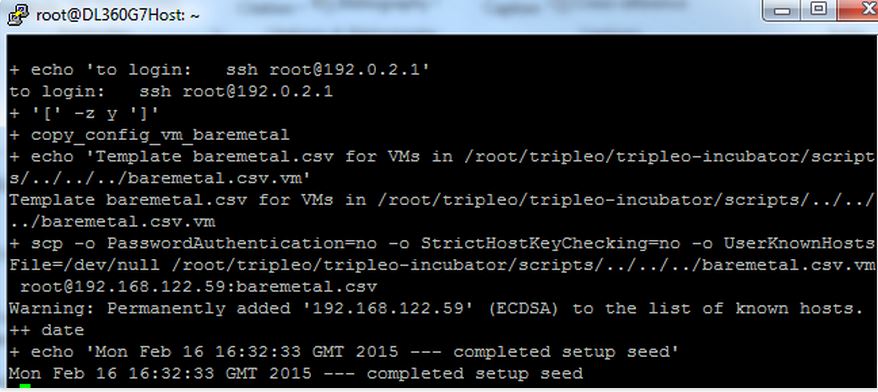
Once the seed has completed – allow 5 minutes for the underlying services to settle. [coffee time]
Now log in to the Seed VM and begin installation of the UnderCloud and OverCloud.
ssh 192.0.2.1
Assuming that the default networking is acceptable we just need to edit the kvm-default.json file and configure the physical interface used by the seed host server (em1 in my case) and also configure the NTP settings.
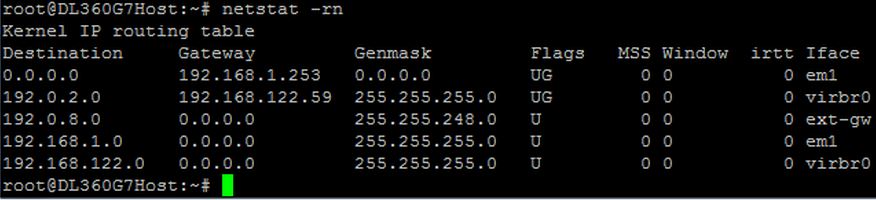
vi tripleo/configs/kvm-default.json

Now source this file and complete the build process – this can take from 30 minutes to 3 hours depending on the underlying physical resources available.
source /root/tripleo/tripleo-incubator/scripts/hp_ced_load_config.sh /root/tripleo/configs/kvm-default.json
bash -x tripleo/tripleo-incubator/scripts/hp_ced_installer.sh  2>&1|tee DL360stackinstall.log
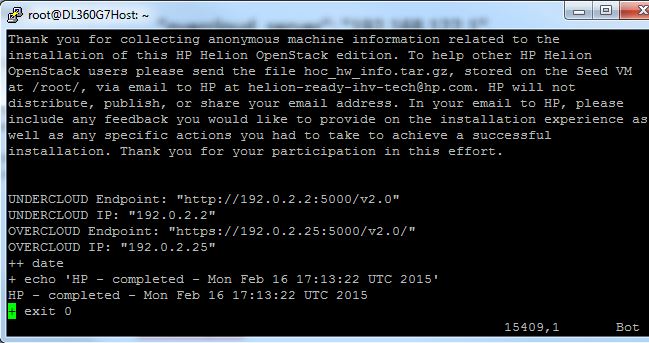
Please see attachments for sample config files and real log files.DL360_VMPLAN_and_Baremetal.csv.cm
 Cumulus Chatter with a Sprinkle of AI
Leave a reply to How-to: Reset a Helion OpenStack seed host for another virtual installation | All Things Cloud Cancel reply